
AI Project Management Guide: Automate Task Assignment and Tracking

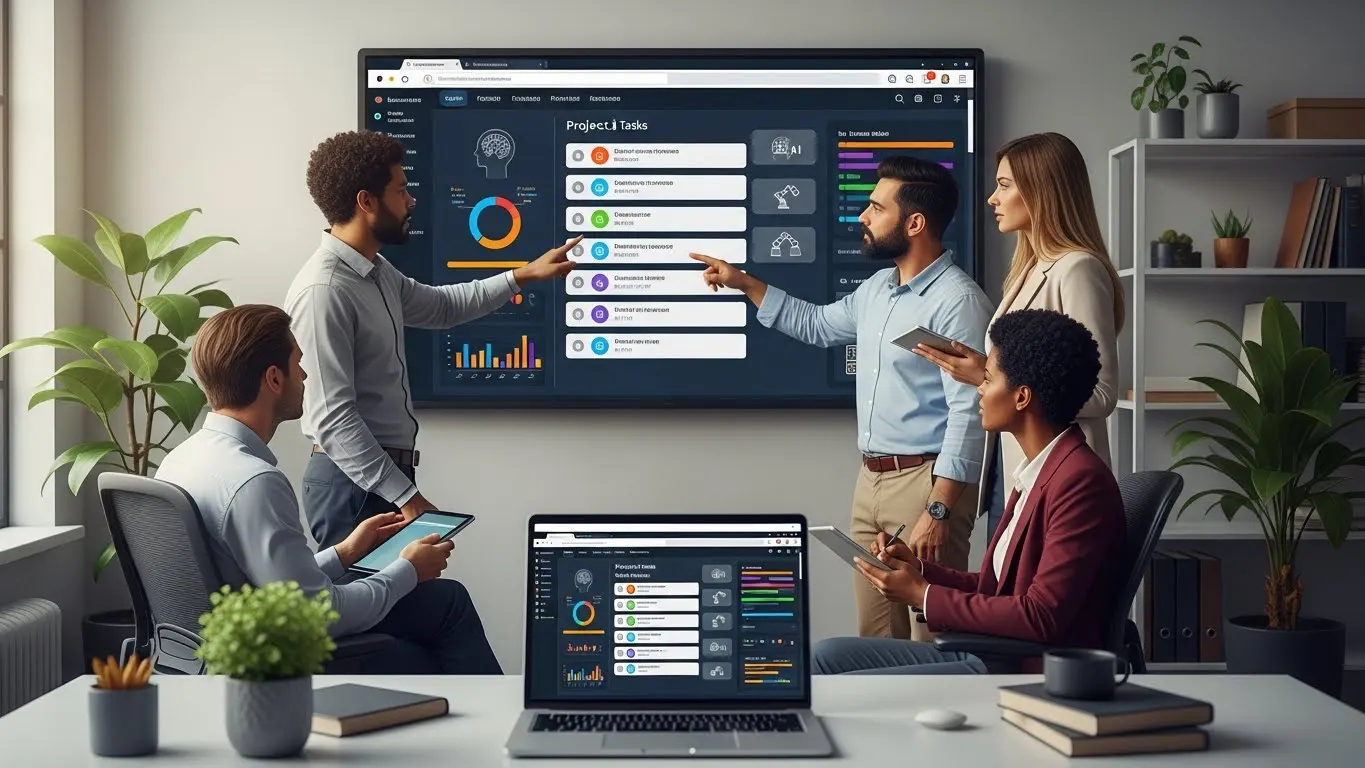
AI project management automation uses intelligent tools to handle task assignment and progress tracking automatically, giving you back hours each week while keeping your team on the same page without constant manual updates.
Introduction
I know many small business owners used to spend hours each week just assigning tasks and checking who was doing what. Did you get that? HOURS! That’s a big chunk of the workday gone before they even started on real work. And to be honest, I used to be like that too, but on a smaller scale.
That’s why I started looking at alternative solutions like AI project management automation (mostly to help others). It felt weird at first. But according to Capterra‘s 2025 Project Management Software Trends Survey, 55% of buyers say AI was the top reason they bought new project management software. So yeah, I’m not alone in figuring out this stuff, because it actually helps.
And look, AI project management automation isn’t about replacing your brain or turning you into some tech guru overnight! It’s about getting tasks assigned to the right people automatically. Whether it’s tracking progress without bugging everyone for updates, or actually knowing what’s happening with your projects in real time.
Those who run a small business know that, between client work and keeping a team organized, automation saves maybe 5-8 hours a week. Personally, I can use that time and spend it on stuff that actually grows the business.
In this guide, I’ll show you exactly how to set this up, what tools work, and which mistakes to avoid.
What Is AI Project Management Automation (And Why You Actually Need It)
Okay, so here’s the deal with AI project management automation. It’s basically when you set up software to handle all the tedious project stuff that normally eats up your day. I’m talking about things like assigning tasks, tracking deadlines, sending reminders, and updating your team on progress.
When I first started managing projects for my small business, I was doing everything manually. Spreadsheets, sticky notes, endless Slack messages asking “hey, where are we on that thing?” It was a mess! Then I tried some of those AI for small business beginners tools and realized I’d been wasting hours every week on stuff a computer could do in seconds. And not only are these tools faster, but they’re also much, much better compared to us humans.

Here’s what AI project management automation actually does. Say someone finishes Task A. The system automatically assigns Task B to whoever has the right skills and the lightest workload. No more guessing who’s available or accidentally burying your best designer under ten projects! It tracks everything in real-time and sends alerts when deadlines are coming up or when something’s getting delayed.
But let me be clear about what it’s NOT. You’re still the project manager. AI isn’t making strategic decisions or handling client relationships. It’s just taking care of the boring, repetitive stuff so you can focus on the parts that actually need your brain.
If you ever done any project management, you should know that the difference is wild. Before automation, you spent maybe 8-10 hours a week just on status updates and task management (depending on the size and volume, of course). Now? Maybe 2 hours. And your team’s happier because they’re not getting constant “what’s your status?” messages. And honestly, you miss way fewer deadlines because the system catches problems before they blow up!
How to Automate Task Assignment (Without Making It Weird)
The key to automating task assignment is starting with simple rules. Think “if-then” statements (programmers love this analogy)! Like, if a design request comes in, assign it to whoever on the design team has fewer than three active tasks. Or when a blog post gets approved, automatically assign the social media promotion task to your marketing person.
I messed this up really when I first tried it! I wanted to create this super complex system for a client that tried to account for every possible scenario. Their team was confused because tasks were going to the wrong people, and everyone thought the project manager lost his mind (sorry)! So I scrapped it and started over with just three basic rules.
But here’s what works. Set up task templates for stuff you do all the time. Things like client onboarding, blog post creation, product launches, whatever you repeat. Each template has the tasks, the order they need to happen, and who typically handles each type of work. Then when you start a new project, the system auto-assigns everything based on current workload and availability.
I can not stress this enough that workload balancing thing is huge. Before I had this set up, I’d accidentally give all the easy tasks to the fastest worker and then wonder why they were burned out! Now the system looks at how many active tasks each person has and distributes work more evenly. Not perfectly of course, because you still need to use your judgment, but way better than my old manual attempts!
Here are a few big mistakes to avoid:
- Over-automating at first (trust me on this)
- Not explaining to your team how the system works
- And forgetting that humans aren’t robots.
Sometimes your best developer wants to take on that weird project even though they’re busy! The automation should help you, not replace your common sense.
Some business owners reported that getting their team to trust these new systems was tricky, and that’s understandable. After all, no one likes to be told by a software what to do or not! Some people are skeptical at first because they think AI is going to micromanage them. Your job is to show them it is actually the opposite (less nagging, more clarity on what needs to be done, and better work distribution). Once they see it in action for a few weeks, they are sold.
Automatic Progress Tracking That Actually Works
Real-time dashboards can change your life, and I’m not even exaggerating! Instead of those painful status update meetings where everyone goes around the table saying what they did, you can just pull up a dashboard and see what’s happening right now.
The way it works is pretty straightforward. Tasks update automatically based on what’s happening in your workflow. Like, what if someone marks a task as done? The dashboard updates. Or a deadline gets pushed? Then, everyone who needs to know gets notified. It’s that simple and powerful.
A friend of mine used to have these weekly meetings that would take an hour minimum. Now they spend maybe 15 minutes actually talking about problems or strategy, because nobody needs to give updates on stuff they can all see. She told me their team and herself loves this. Also, their AI meeting notes tool still captures decisions from the shorter meetings, but they’re not drowning in status reports anymore.

The alert system is where things get really useful. You set triggers for stuff like “if a task is 80% through it’s on the right track, but if 50% complete, send an alert.” Or “if three tasks in a row get delayed, flag it.” This way you catch problems early instead of finding out a week before launch that everything’s behind schedule!
One important note I should add, integrating with tools you already use is key. Let’s say you connect everything to Slack, so alerts pop up where your team already is. Or email notifications for the big stuff (besides alerts). The point is, you don’t want people checking yet another app for that stuff, which defeats the whole purpose!
But here’s something important. Don’t track everything (if you don’t want your team to hate you)! You don’t need to know how long someone spent on each tiny subtask. Track the stuff that matters (major milestones, deadlines, dependencies, blockers). Give your team room to work without feeling watched. Trust me on this one.
Best AI Project Management Tools for Small Teams
Alright, let me introduce you really quickly to the tools I’ve actually used or tested or that people I trust used.
ClickUp is the first one. It’s got AI features for task assignment, workload balancing, and automatic updates. The learning curve isn’t terrible, and they have a free plan that’s actually useful for small teams.
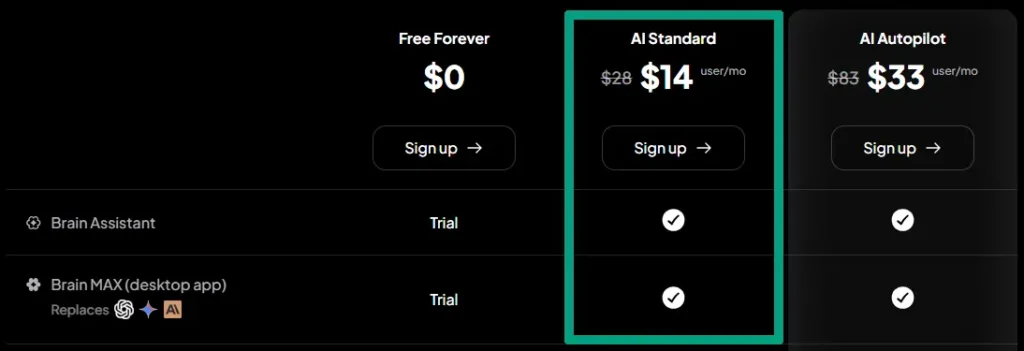
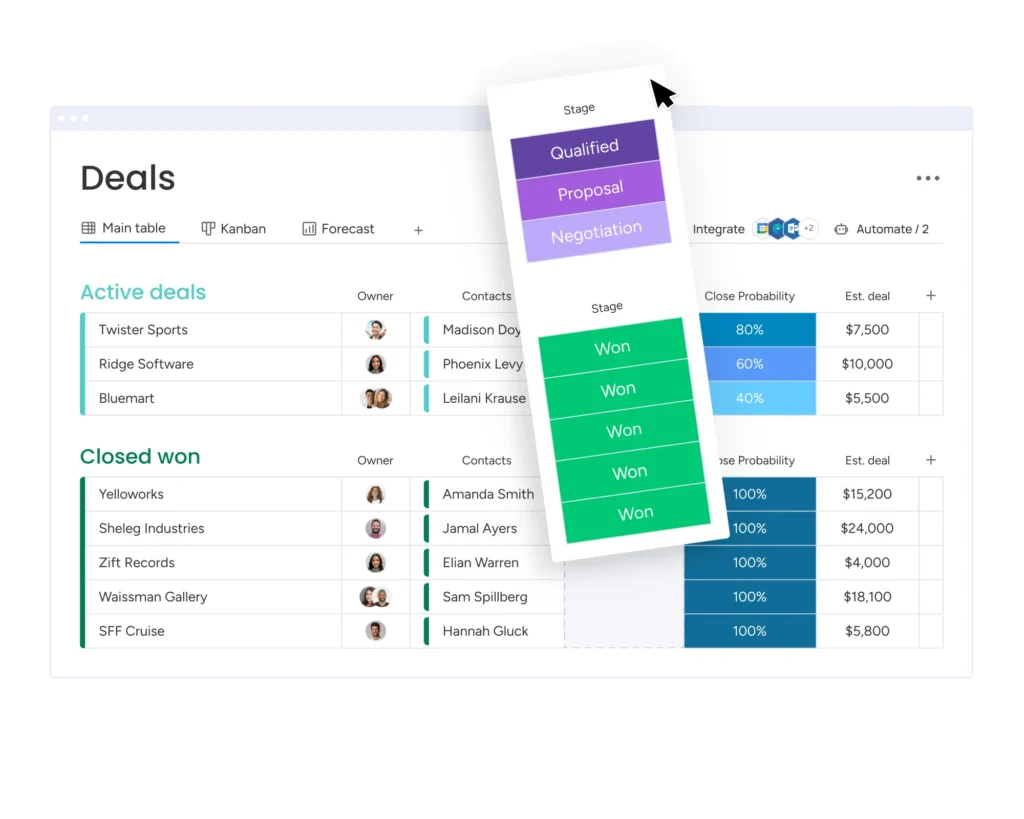
Monday.com is what a client of mine uses, and they love it for the visual workflow boards. The AI automation is solid, and it’s pretty simple once you get past the initial setup. Pricing is a bit higher, but if you’ve got a team that’s very visual, it’s worth checking out.
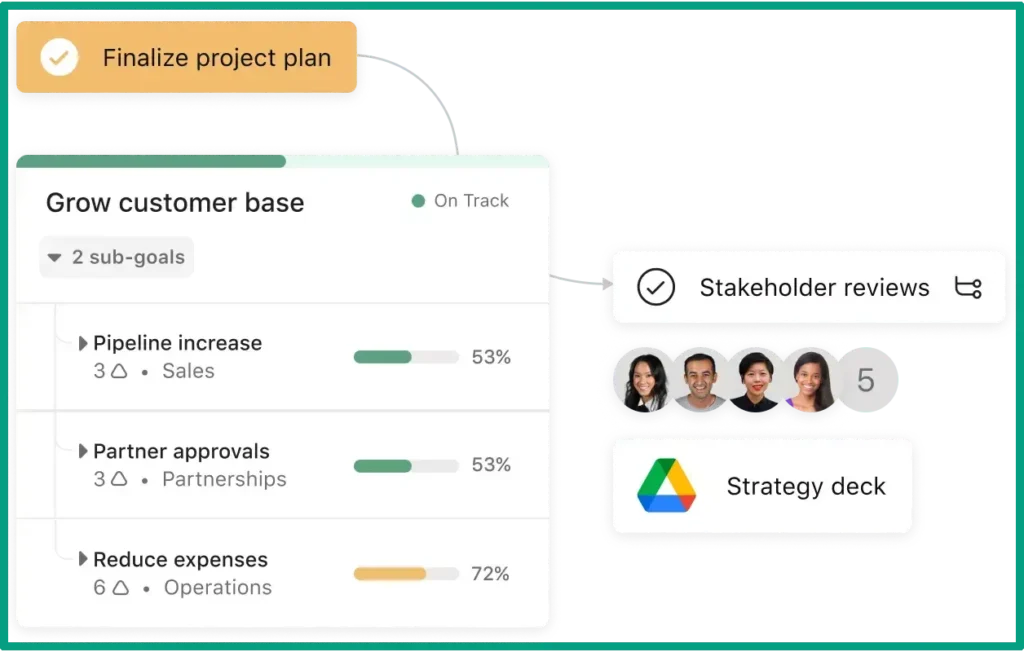
Asana recently added AI features, and I tested it just to see what’s what! It’s good for straightforward project management, and if you’re already using Asana, the AI add-ons are a no-brainer. Not as powerful as ClickUp for complex automation, but simpler if you don’t need all the bells and whistles.
Motion is interesting. It’s more focused on AI scheduling and time management. A colleague of mine uses it and says it’s great for automatically scheduling tasks based on priority and deadlines. Works really well if you’re managing a lot of individual contributors who need help with time blocking.
Now that you know a few of these tools, the question is, what should you look for in them?
- First, ease of setup. If it takes you three weeks to get running, you’ll give up!
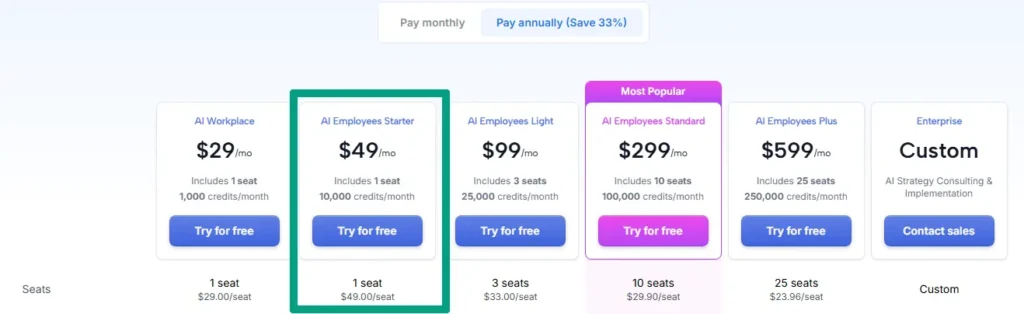
- Second, pricing that makes sense for small teams, because some of these tools charge per user, and that adds up fast.
- Third, integrations with whatever you’re already using. If you live in Google Workspace or Microsoft 365, make sure the tool plays nice with those.
And let me tell you that free vs paid can be tricky! Most free plans are enough to get you started and see if automation actually helps your workflow. You can always upgrade later when you know what features you actually need. So, don’t pay for features you’ll never touch!
But there are also a few red flags you need to watch for:
- If the interface is so complicated that you need a manual to do basic stuff, skip it.
- If customer support is terrible (check reviews), that’s a problem when things break.
- And if they’re pushing a bunch of features you know you’ll never use, it’s probably overkill for your team.
The best AI productivity tools are the ones you’ll actually use consistently, not the ones with the longest feature list.
Setting Up Your First Automated Workflow (Step by Step)
Here’s how I recommend starting. Pick ONE repetitive task that drives you crazy. Let’s say it’s assigning blog tasks every week. Same process every time, but it might still take 30 minutes of your precious time to figure out who should write what based on their workload and expertise.
Before you change anything, map out your current process. You can literally write down every step, like “Check who submitted blog ideas, look at each writer’s current tasks, match topics to writers, create tasks, assign them, set deadlines, send notification.” Seeing it all written out can make you realize how ridiculous it was to do this manually!
Next, choose your triggers and actions. An example could be, “new blog idea approved.” Then your actions might be, check writer availability, assign based on topic expertise and workload, create tasks for writing, editing, and publishing, and set deadlines based on your content calendar. Pretty simple, but I assure you, it saves so much time.
Finally, test it with your team before you roll it out completely. That way you get feedback like “the deadlines are too tight” or “can we get notifications in Slack instead of email?” You need to make those tweaks before expanding to other workflows.

Remember, you can always gradually add more automation as everyone gets comfortable. Let’s say the blog workflow example was solid. Your next move could be automating your client onboarding process, then your product launch checklist, and so on. Now Let’s say we’ve got maybe eight or nine automated workflows, but we built them one at a time over several months. This way, everything goes as smoothly as it should, and nothing gets broken or gets overly complicated.
Still, you might ask, how do you know if it’s working? Well, I track three things: time saved (ex, I went from 15+ hours a week on project admin to maybe 3-4 hours), fewer missed deadlines (ex, we used to miss maybe one or two a month, now it’s rare), and team satisfaction (ex, my team actually liked the new system, when I asked them). If those three things improve, you’re on the right track.
And look, not to burst your bubble, but this stuff isn’t magic! It takes some setup time, and you’ll make mistakes. But once you’ve got it running smoothly, it’s kinda amazing how much time you get back to do actual work instead of just managing work.
FAQ
Q: Does AI project management automation work for small teams?
A: Yep, actually works better for small teams. You don’t need fancy enterprise stuff. Basic automation like task assignment and deadline reminders can save you some serious time. Plus, most tools have free plans to start.
Q: Will my team hate automated task assignments?
A: Not if you explain it right. Show them it’s about fair workload distribution, not micromanaging. Let them give feedback on assignments. Most teams appreciate knowing exactly what’s expected without constant check-ins.
Q: How long does it take to set up AI automation?
A: Start simple and you’re looking maybe at 2-3 hours for basic automation. Pick one workflow, set it up, and test it. Add more as you go. Don’t try to automate everything on day one!
Q: What happens if the AI assigns tasks wrong?
A: Easy fix. Most tools let you override automated assignments anytime. Plus, you set the rules, so tweak them based on what works. AI learns from your corrections in better tools.
Q: Is AI project management automation expensive?
A: Not really. Solid tools start around $10-20 per user monthly. Free tiers handle basic automation fine for teams under 5 people. Compare that to hours spent on manual task management weekly.
Conclusion
So yeah, AI project management automation isn’t some scary tech thing! It’s basically getting the boring, repetitive parts of managing projects handled automatically so you can focus on stuff that actually matters.
From my experience, start with simple task assignment automation and progress tracking. Don’t try to automate your entire workflow on day one. Pick one thing that’s eating up your time, automate that, see how it goes. Then add more.
The tools are pretty straightforward now. Most have free trials, so you can test before spending money. And honestly, if it saves you even just five hours a week, that’s five hours you can spend growing your business instead of updating spreadsheets or chasing people for status updates!
Give it a shot. Worst case? You learn something new. Best case? You get a bunch of your time back and your team actually knows what they’re supposed to be doing without you telling them every single day!