
Top AI Education Apps for Teachers and Homeschool Parents

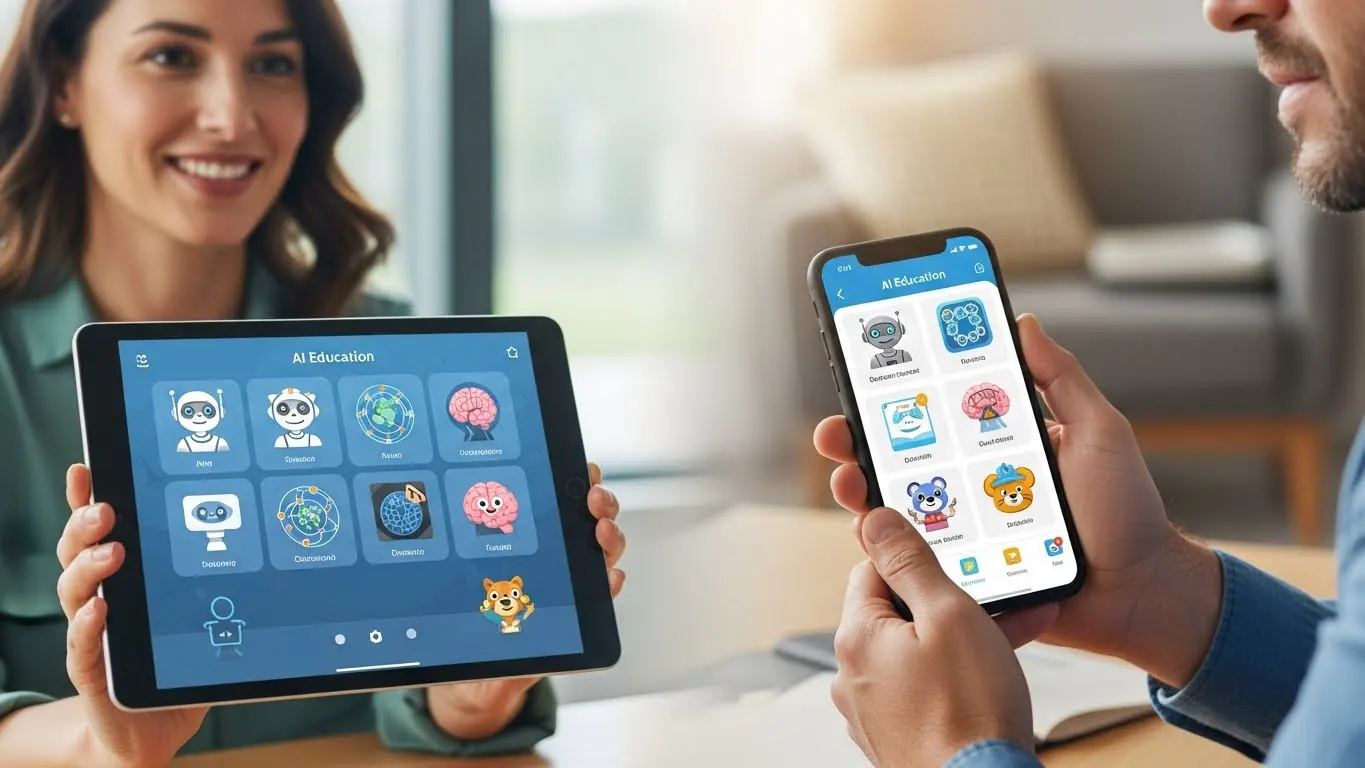
This guide reviews the best AI education apps for teachers and homeschool parents by comparing features and real classroom applications to help educators choose the right tools for personalized learning, lesson planning, and student engagement.
Introduction
Look, I’m just gonna be honest with you. When I started looking into AI tools for this guide, I was pretty overwhelmed! There are so many apps out there claiming to change education forever, but which ones actually work? Or you might ask yourself, should I even consider AI tools in education?
Then let me give you something interesting. According to a 2025 RAND Corporation study, 54% of students and 53% of teachers are already using AI for school. So yeah, this isn’t some future trend anymore! It’s happening right now.
Even if you’re not skeptical about AI, you might still wanna know, “Which apps are actually worth my time and money?” Maybe you’re a teacher trying to figure out lesson planning with 30 kids to manage. Or you’re a homeschool parent juggling five different subjects and wondering how to manage all those messes!
The good news is, I spent a lot of time testing (and researching) these tools myself, and I’m gonna show you the best AI education apps that actually deliver. No sponsored nonsense! Just real tools that work for real classrooms and homeschool setups. Plus, I’ll break down what each one does best so you can pick the right fit for your teaching style. So, let’s do this!
Best Overall in a Glance
Quizlet (Q-Chat)
What you get: AI-powered study sets and interactive learning with flashcards
- Pros:
- Millions of pre-made study sets covering nearly every subject
- Q-Chat AI tutor explains concepts in different ways until students get it
- Multiple study modes keep practice from getting boring
- Cons:
- Free version bombards you with ads
- Some user-generated content has errors or outdated info
- Premium subscription required for best AI features
Duolingo Max
What you get: Interactive language learning with AI conversation practice
- Pros:
- Makes language learning feel like a game that kids actually enjoy
- AI roleplay feature lets students practice real conversations
- Works on any device with progress syncing
- Cons:
- Monthly subscription adds up for multiple children
- Some parents find the gamification too distracting
Grammarly for Education
What you get: Real-time writing feedback and plagiarism detection for teachers
- Pros:
- Catches grammar mistakes and explains why they’re wrong
- Plagiarism checker helps students learn proper citation habits
- Teacher dashboard lets you track writing progress over time
- Cons:
- Premium version gets pricey for multiple teachers
- Can make students too dependent on auto-corrections
- Sometimes flags stylistic choices as errors when they’re actually fine
AI Tools Built for Different Teaching Styles (and How to Choose the Right One)
Look, I’ve spent the last couple of years helping many people in different fields (business, education, personal life, etc) figure out which AI apps actually work for their specific needs. And here’s what nobody tells you upfront. Not every tool fits every teaching style! It’s kinda like trying to wear someone else’s shoes. Sure, they might work, but they’re probably not gonna feel right!
If you’re into direct schooling, you need apps that help you plan and deliver content efficiently. I’m talking about tools like an AI lesson plan generator that can spit out structured lessons in minutes. For example, one teacher I know uses these for her high school history classes, and she genuinely loves how they help her create consistent lesson frameworks. She still tweaks everything to match her style, but the AI gives her a solid starting point.
For project-based learning folks, you want apps that support creativity and exploration. These are tools that help students research, create presentations, and collaborate. One example is those homeschool parents who do mostly project work with their kids, and they’re doing a better job when they don’t force a rigid structure. The best AI tutoring platforms actually work great here too, because they adapt to how each kid learns during their projects.

Now, if you’re running a self-paced classroom or homeschool setup, you need apps that can assess and adjust on their own. Think adaptive learning platforms that figure out where a student struggles and automatically adjust the difficulty. I’ve seen this work really well with mixed-age homeschool groups where everyone’s at different levels.
Here’s the thing about learning styles (visual, auditory, kinesthetic). Most apps claim they handle all three, but that’s mostly marketing tricks! What I’ve found is that apps with video explanations and interactive diagrams work great for visual learners. Auditory learners do better with apps that have voice features or read-aloud options. And kinesthetic learners? Honestly, they need apps that get them doing something, not just watching or listening.
Your classroom management style matters too. If you like tight control over what students access, you need apps with strong teacher dashboards and monitoring features. But if you’re more hands-off and trust kids to manage their own learning, look for apps that give students freedom but still track progress for you.
And yeah, tech skills matter too. Some apps are ridiculously simple; like, you could figure them out in ten minutes. Others require you to watch tutorials and mess around for a week before you get it right! Be honest about your comfort level with technology. There’s no shame in starting with the easy stuff.
12 Best AI Education Apps for Teachers and Parents (Full Breakdown)
Alright, now that you know the basics, here’s where we get into the actual tools. I’ve personally tested most of these, and the ones I haven’t used myself, I’ve got good friends and family members in my network who recommended them. Not all of these will work for everyone, and that’s okay. Pick the ones that fit your situation.
Khan Academy (Khanmigo)

Best for: Students who need extra support outside class hours, especially in math and science. The AI tutor doesn’t just hand out answers; it actually walks kids through problem-solving, which is rare.
Pros:
- Guides students with questions instead of giving answers directly
- Covers tons of subjects from elementary through early college
- Parents can see what their kids are working on
- The free version is genuinely useful
Cons:
- Khanmigo AI tutor is paid only
- Interface can feel overwhelming with so much content
- Some younger kids need help navigating it
I’ve been recommending Khan Academy for a while now, but Khanmigo is something else. One of my homeschool clients uses it with her middle schooler who hates asking for help! The AI tutor asks him questions until he figures it out himself, and he doesn’t feel embarrassed just because he could ask a question as many times as he wants.
Here’s the thing though. Khanmigo works best when students actually want to learn. If your kid is just trying to get homework done fast, they’ll get frustrated with all the Socratic questioning! But if they’re genuinely stuck and want to understand something? It’s gold.
Magic School AI
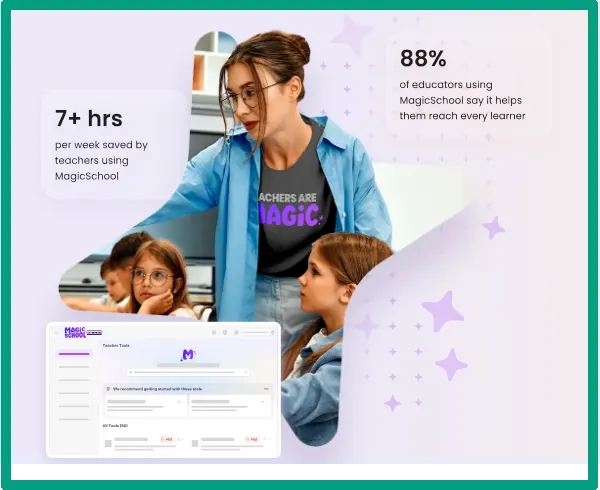
Best for: Teachers drowning in lesson planning and prep work. This is one of the most practical choices on the best AI productivity tools I’ve found for classroom teachers.
Pros:
- Over 80 different AI tools in one platform
- Creates lesson plans in literally minutes
- Quiz and worksheet generators are solid
- Free version includes most major features
Cons:
- So many tools, it’s hard to know where to start
- Some outputs need heavy editing
- Can feel overwhelming at first
You can use Magic School AI pretty much all the time for planning. Also, you can find other solid tools from the AI lesson plan generator guide. All you have to do is select your topic, grade level, and objectives, and boom, you’ve got a full lesson structure. But is it perfect? No! Do you have to always always tweak it? Yes! Though it can save you hours of precious time each week.
The quiz maker is another feature you can lean on heavily. You can give it a text or topic, and it’ll generate questions at different difficulty levels. I recommend combining this with their rubric creator when you need planning assessments. One elementary teacher I know uses the newsletter generator to send weekly updates to parents. She says it cut her Friday afternoon work by half.
Here’s my honest take. Start with just three tools. Like the lesson planner, the AI quiz generator, and maybe the discussion question generator. Get comfortable with those before you explore the other 77 options! Otherwise, you’ll spend more time clicking around than actually planning.
Duolingo Max
Best for: Language learners who want conversation practice without the pressure of talking to a real person. The AI conversation feature is legitimately impressive.
Pros:
- AI conversations feel surprisingly natural
- Explains grammar mistakes in context
- Gamification actually works to keep kids engaged
- Works on any device
Cons:
- Max tier is pricey
- Not available for all languages yet
- Can’t fully replace real conversation practice
Look, I tested Duolingo Max just because I wanted to learn something new (and also see what’s what on this tier!). The “Explain My Answer” feature is brilliant. You can tap any exercise and ask the AI to break down why you got something wrong. It doesn’t just say “incorrect,” it explains the grammar rule or vocabulary issue in plain English.
The conversation practice is where this really shines. You’re chatting with an AI character about random topics, and it corrects you gently when you mess up! For shy kids or adults (like me) who freeze up speaking to real people, this is huge.
But here’s the reality check. It’s better than traditional language apps with their boring tests, but it’s not a substitute for actual conversation with humans. Use it as practice, not as your only method. And the pricing is steep compared to regular Duolingo (which is free). You’re paying for those AI features, so make sure you’ll actually use them.
Brisk Teaching
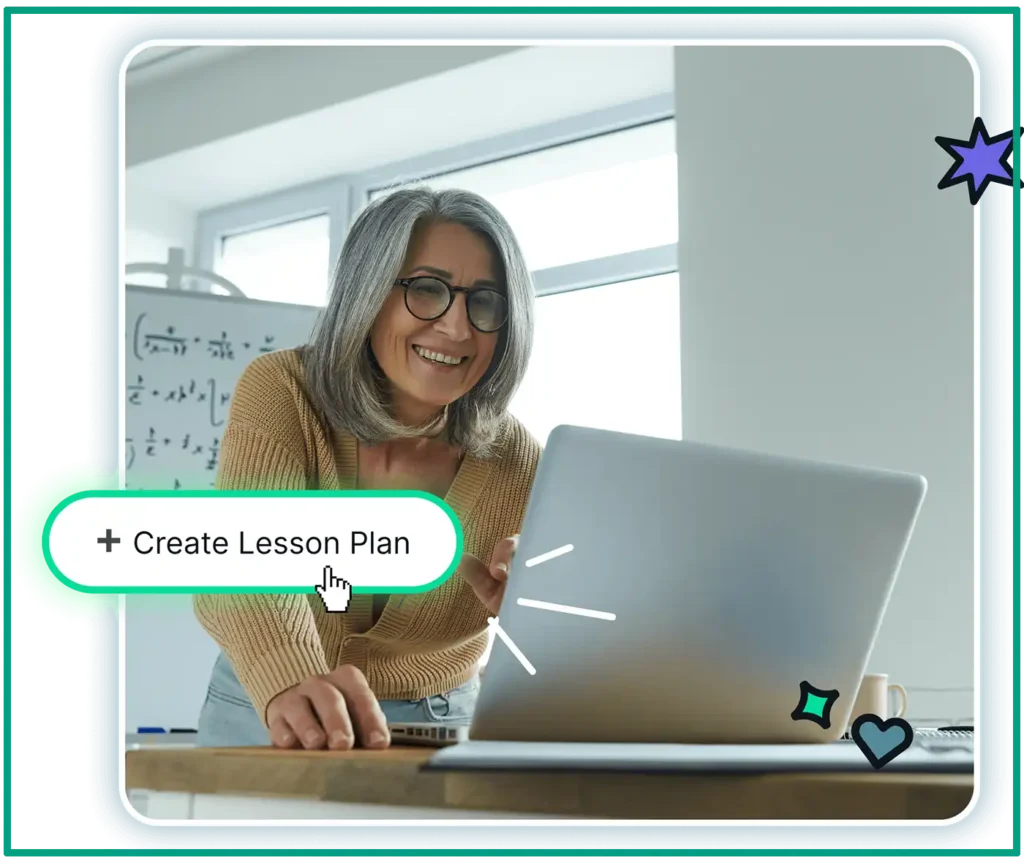
Best for: Teachers already using Google Classroom who want to speed up grading and feedback. The integration is solid, which matters more than you’d think.
Pros:
- One-click integration with Google Classroom
- Instant feedback on student work
- Saves hours on grading essays
- Chrome extension makes it super accessible
Cons:
- AI feedback can be generic sometimes
- Learning curve for all the features
A colleague of mine introduced me to Brisk, and I kicked myself for not finding it sooner! If you’re already living in Google Classroom, this is a no-brainer. You can grade assignments right from your browser with AI-assisted feedback. The tool reads student responses and suggests comments, grades them, and highlights areas where students struggled.
The one-click feedback is what sold me. Instead of spending 30 minutes writing comments on each essay, the AI gives you a starting point, and you can just personalize it. Your feedback is still genuine, but you’re not starting from scratch every time. For a full class set of essays, this can save a lot of precious hours.
The automated grading works best for structured assignments (short answer responses, reading comprehension, that kind of thing). For creative writing or projects, you’ll still want to do most of the grading yourself. But even then, Brisk can catch technical issues like missing citations or unclear thesis statements.
Quizlet with Q-Chat
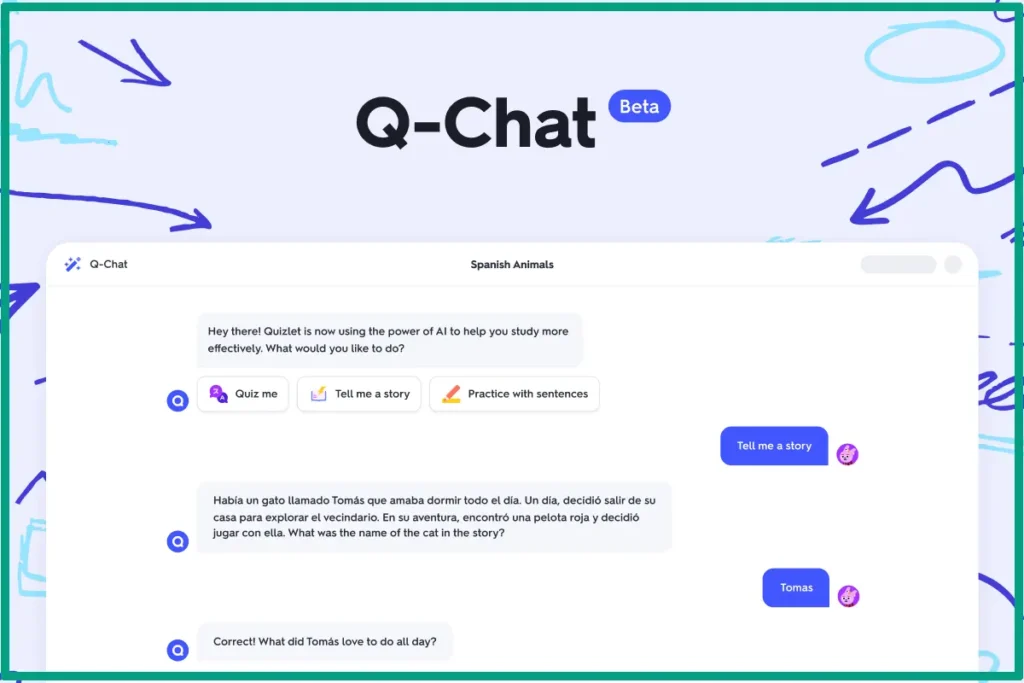
Best for: Independent study and test prep. The AI chatbot turns passive flashcard reviewing into active learning conversations.
Pros:
- AI explains concepts instead of just showing answers
- Adapts to how the student learns best
- Great for group study features
- Huge library of existing study sets
Cons:
- Q-Chat requires a paid subscription
- Can be distracting with all the games and features
- Students might rely on it instead of actually studying
I’ve used regular Quizlet forever, but Q-Chat is a different beast. Instead of just flipping through flashcards, students can ask the AI questions about the material and it’ll explain in a way that makes sense.
One of my friends tested this with her high schooler for SAT prep. Her son can study at his own pace, and when he doesn’t understand something, he asks Q-Chat instead of waiting for her to be available. She says it’s reduced her “tutor duty” by hours every week while actually improving his understanding.
Also, the group study features are amazing for classroom teachers. Students can challenge each other, share study sets, and see how they rank. It adds a competitive element that gets kids to actually review material.
Here’s my warning though. Students can use it incorrectly! They ask Q-Chat for explanations, but never actually try to understand on their own first. You gotta teach them to struggle with the material before going to the AI; otherwise, they’re not really learning.
Grammarly for Education
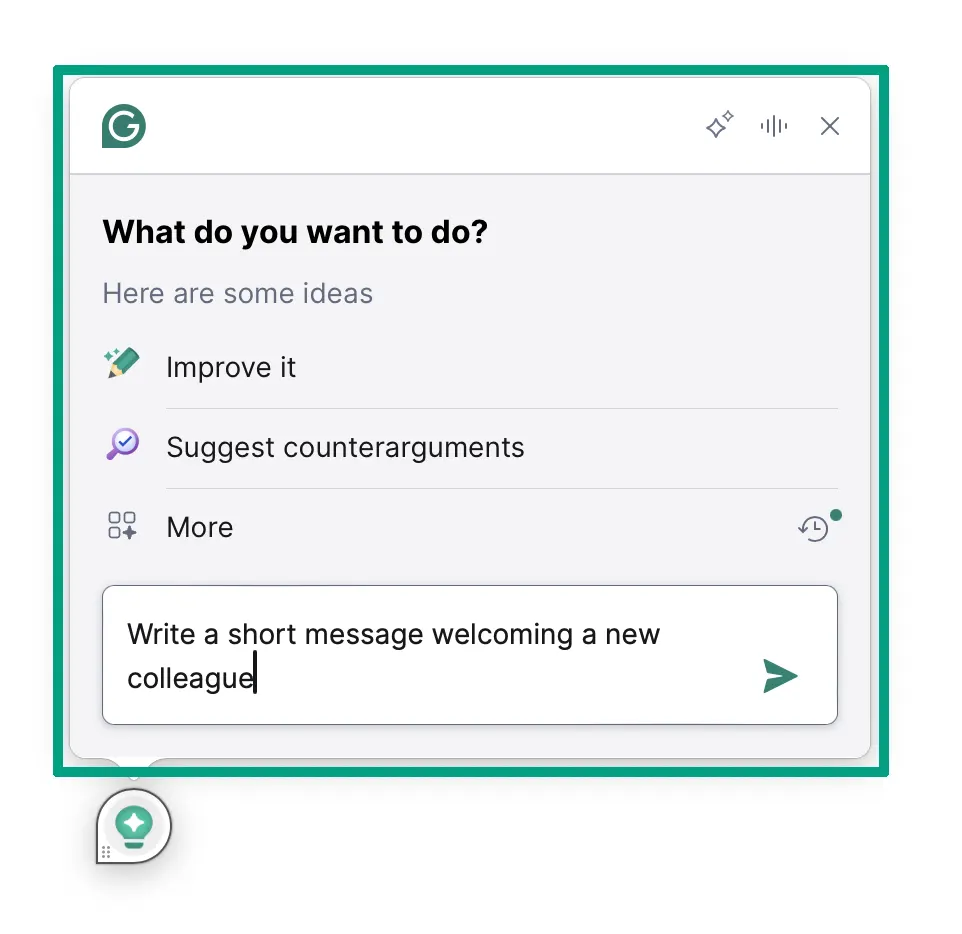
Best for: Middle school through college. The classroom features let teachers see patterns in student writing on all their assignments.
Pros:
- Catches way more than basic grammar mistakes
- Shows students how to improve, not just what’s wrong
- Plagiarism detection is included
- The teacher dashboard tracks progress over time
Cons:
- A bit expensive for individual families
- Can make students over-rely on editing tools
- Sometimes flags correct writing as errors
I use Grammarly myself for everything, so when they launched the education version, I knew it was good. The difference between regular Grammarly and the education version is the teacher dashboard and classroom management tools. You can see which students are struggling with specific writing issues. Like everyone in your class keeps using passive voice, or nobody understands the comma rules!
The feedback goes beyond “this is wrong.” It explains why something is wrong and suggests alternatives. I’ve seen students actually learn from these lessons instead of just clicking “fix it” and moving on!
The plagiarism detection is solid, though nothing catches everything! It’ll flag obvious copy-paste jobs and show you the sources. But students are getting sneakier, and AI-written content doesn’t always trigger plagiarism detectors. You still need to read their work and know your students’ writing styles.
For homeschool families, the cost adds up fast if you’ve got multiple kids. I’d recommend it for high school students who are doing a lot of writing. For younger kids, the free version is probably enough.
Curipod
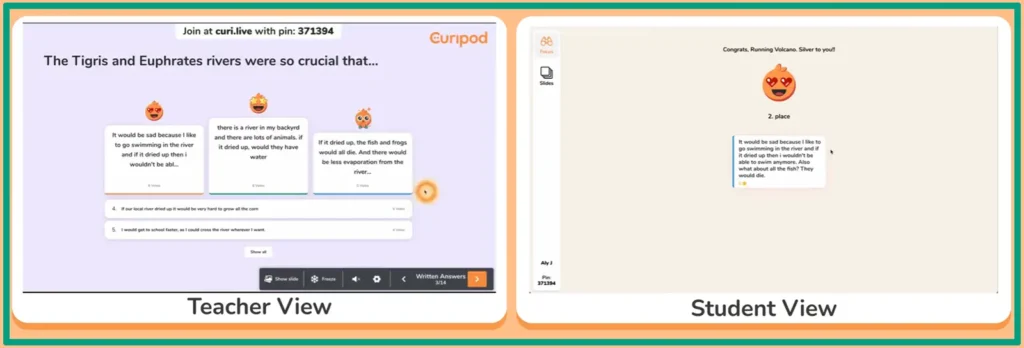
Best for: Teachers who want interactive lessons without spending hours creating slides and activities. The real-time engagement tools actually keep kids participating instead of zoning out.
Pros:
- Creates interactive lessons super fast
- Real-time polls and questions keep students engaged
- AI generates discussion prompts that are actually good
- Works great for remote or hybrid teaching
Cons:
- Requires a reliable internet connection
- Free version limits features
I discovered Curipod when one of my teacher friends needed remote teaching. He actually kept using it even after they went back to in-person classes. The AI-generated discussion prompts are honestly better than you expect. You give it your topic, and it creates questions that spark actual debate and critical thinking.
The real-time engagement is what makes it special. Students respond on their devices, and you see their answers pop up immediately. Then you can make word clouds from their responses, run quick polls, or have them draw their ideas. It breaks up those boring lectures and keeps kids actually paying attention!
Then there is this AI lesson creation tool, which is handy but not perfect. It’ll give you a solid outline with activities, but you’ll want to customize it to fit your actual students.
Writable
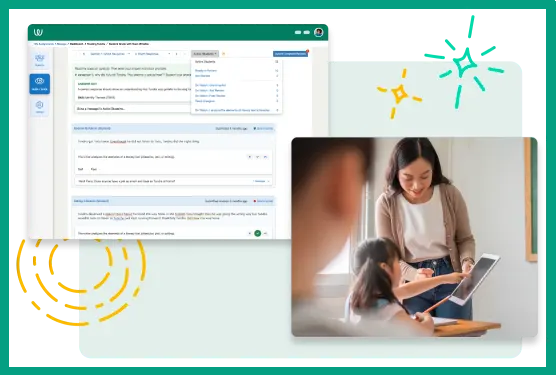
Best for: Teaching writing as a process, not just grading final products. This is one of the better AI grading tool options specifically for writing instruction.
Pros:
- Focuses on improvement, not just correction
- The grading feedbacks are consistent
- Tracks growth over time
Cons:
- Steep learning curve for teachers
- A bit pricy
Writable is ideal for those how teaching English in high school level. The AI reads student writing and gives feedback. But here’s what makes it different. It doesn’t just mark mistakes; it asks students questions to help them improve their own work.
Like, instead of saying “This paragraph needs a better topic sentence,” it’ll ask “What is the main idea you’re trying to express in this paragraph?” Then students have to revise and explain their thinking. It teaches them to be better writers, not just better at fixing errors, which is amazing.
Century Tech
Best for: Personalized teaching and special education support. The adaptive learning paths actually adjust to where each student is, not just their grade level.
Pros:
- Identifies specific knowledge gaps automatically
- Adapts difficulty in real-time
- Excellent progress tracking for parents and teachers
- Strong SEND (special education) support features
Cons:
- UK-focused, so some content doesn’t match US standards
- Requires district/school purchase usually
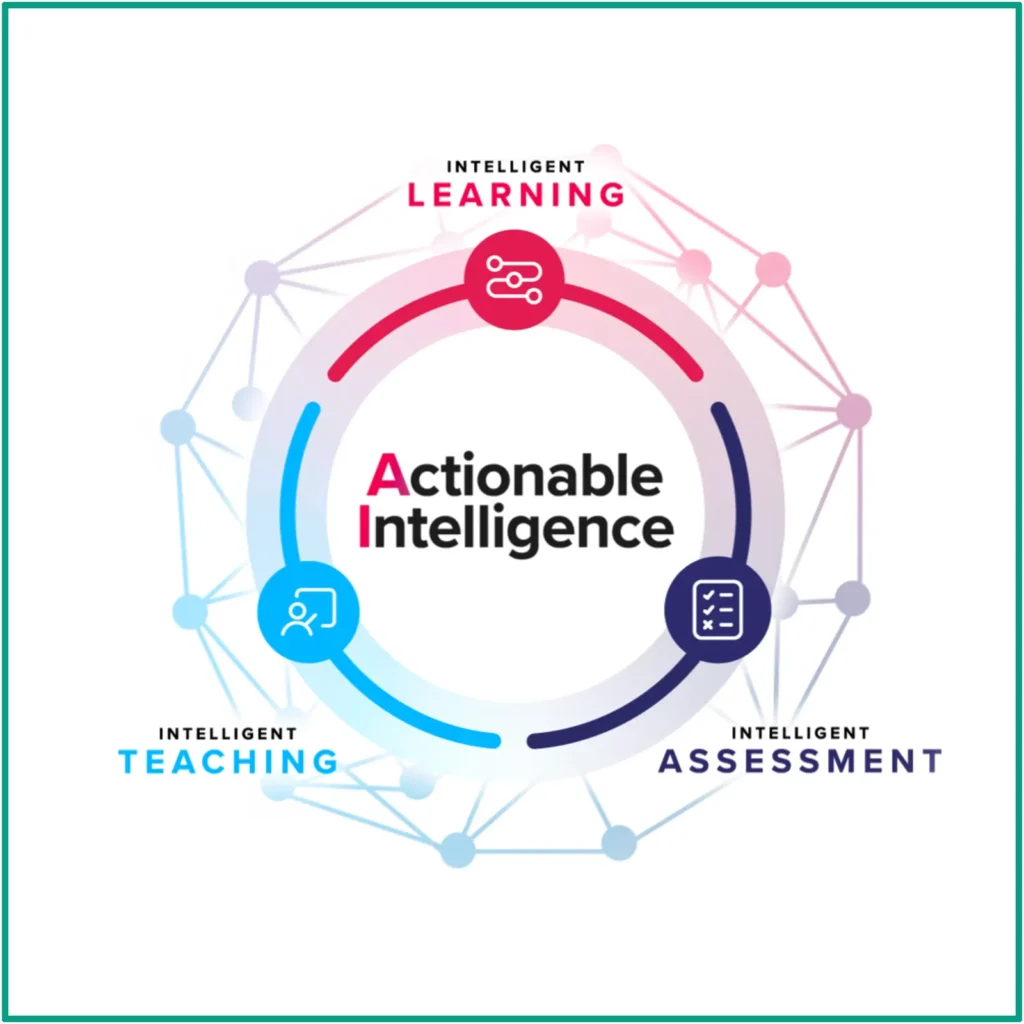
I haven’t used Century Tech myself, but I have a client who’s a special education teacher in the UK, and she loves it. The platform assesses where students actually are in their learning (not where their age says they should be), then builds custom learning paths to fill in gaps.
The AI tracks things like how long students take on problems, where they get stuck, and what types of mistakes they make. Then it adjusts. This is huge for mixed-ability classrooms where you’ve got students at wildly different levels.
For students with learning differences, Century Tech has been a huge help according to my colleague. It provides multi-sensory learning approaches, breaks content into smaller chunks, and gives students as much time as they need without feeling rushed. The progress tracking helps parents and teachers spot patterns (like maybe a student always struggles with word problems but excels at computation).
The downside is, it’s mainly available through schools or districts, not individual purchase. And if you’re in the US, you’ll want to check that the content aligns with your state standards since it was built for the UK curriculum.
Socratic by Google
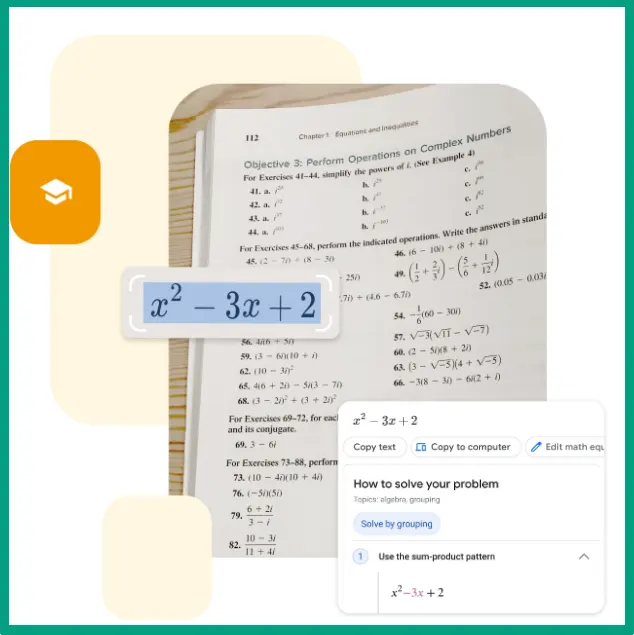
Best for: Homework help across all subjects. Students can literally snap a photo of their problem and get step-by-step help, which is pretty wild.
Pros:
- Completely free (made by Google)
- Covers math, science, history, English, and more
- Visual explanations with diagrams
- Shows work step-by-step
Cons:
- Sometimes gives answers too easily
- Can’t replace understanding concepts
- Wrong answers occasionally slip through
My niece uses Socratic (now Google Lens), and I’ve got mixed feelings! On one hand, when she’s genuinely stuck on a chemistry problem at 10 PM, it’s a lifesaver. She takes a photo, and Socratic breaks down the solution step by step. She learns the process, not just the answer.
On the other hand, I’ve caught her using it when she hasn’t even tried the problem herself! That’s the risk with these AI homework tools for parents to be aware of. They’re so easy to use and skip the struggle part of learning. So you need to set rules, probably. Like, tell your kids (or students) try it yourself first for at least five minutes, then use Socratic if you’re still stuck.
The visual explanations are actually better than a lot of textbooks. For math and science especially, it shows diagrams, graphs, and works through problems visually. This helps kids who don’t learn well from text alone.
Since it’s free and from Google, most schools allow it. Just make sure students understand it’s for learning, not for copying answers. That’s a conversation parents need to have.
Cognii
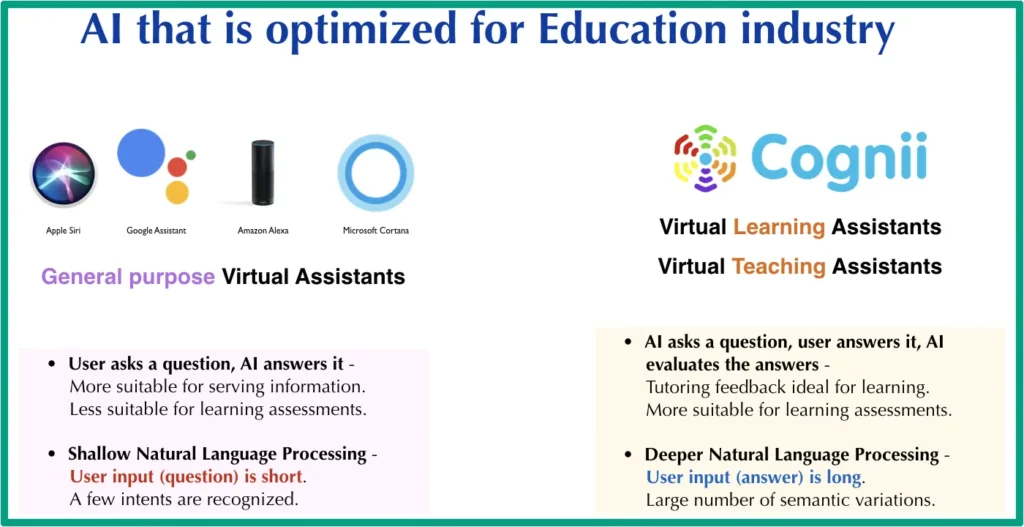
Best for: Teaching critical thinking through open-response questions. Unlike most AI tools that focus on multiple choice, this one actually makes students explain their thinking.
Pros:
- Assesses understanding, not just memorization
- Natural language processing feels conversational
- Develops critical thinking skills
Cons:
- More expensive than some other options
- Requires thoughtful implementation
- Not great for younger elementary students
I tested Cognii with a high school teacher friend, and honestly, it impressed me. Most AI education tools are basically fancy multiple-choice systems. Cognii requires students to write out their answers in complete thoughts, then it tutors them through improving their responses.
The natural language tutoring is what sets it apart. A student might write “photosynthesis makes food for plants,” and Cognii will respond with “You’re on the right track. Can you explain where the energy for this process comes from?” It’s pushing them to think deeper, not just recall facts. This is probably the closest I’ve seen to Socratic teaching in AI form. It doesn’t accept vague answers. It keeps asking questions until students demonstrate they actually understand the concept.
The assessment features help teachers see not just if students got the right answer, but how they’re thinking about problems. You can spot misconceptions early and address them before tests. For subjects like science and social studies, where understanding is more important than memorizing, this is valuable.
But it requires school or district purchase, and pricing varies based on student numbers. Not really an option for individual homeschoolers, which is a bummer because I think it would be great for that setting.
Ivy.ai Chatbot
Best for: Reducing teacher workload on questions and common student issues. This is less about instruction and more about freeing up your time for actual teaching.
Pros:
- Available 24/7 for student questions
- Answers common questions instantly
- Reduces email overload for teachers
- Integrates with school management systems
Cons:
- Only as good as the info it’s fed with
- Can’t handle complex or unique situations
- Requires IT setup and maintenance
- Students might prefer talking to a real person
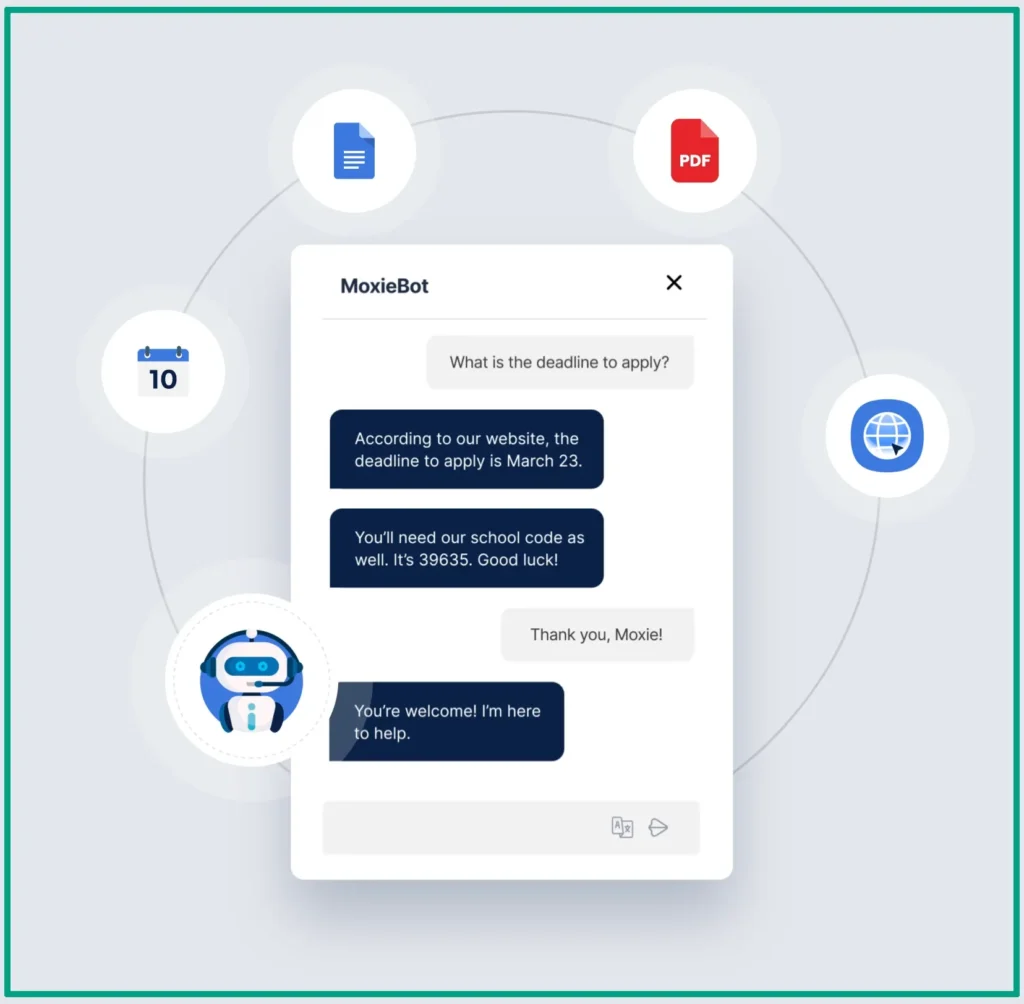
I’ve seen Ivy.ai in action on a few occasions, though I don’t personally use it. It’s basically a chatbot that lives on your school’s website or in your learning management system. Students ask questions like “When is the assignment due?” and Ivy answers immediately.
The time-saving is real. Teachers who implemented it said they cut their email answering time by half. All those repetitive questions (syllabus stuff, due dates, assignment requirements), Ivy handles them with no problem. You’re just not typing or copying the same answer for the twentieth time!
But here’s the limitation. Ivy only knows what it’s been taught. If a student has a weird situation or a question that requires human judgment, the chatbot will route them to a real person. And some students just want to talk to their teacher anyway, which is fair.
This is definitely a school-wide purchase, not something individual teachers or parents can just grab. It requires setup with your school’s systems and ongoing maintenance. But for larger schools or districts dealing with high volumes of repetitive questions, it’s a smart investment.
How to Actually Use These Apps in Your Daily Routine
Okay, so you’ve got these AI apps downloaded (or plan to at least!). Now what? Because I see teachers and parents get excited about the possibilities, then they open the app and just… freeze! Let me walk you through what a realistic day looks like when you’re actually using these tools.
Morning planning is where AI really shines. Before your first cup of coffee is finished, you can have the day’s lesson plan in advance. You can start by adding your learning objectives to an AI planner. Then it suggests activities, discussion questions, and even estimates timing. Takes maybe fifteen minutes instead of the hour you used to spend.
Setting up your first AI-assisted classroom is honestly less scary than it sounds. Start with one tool. Seriously, just one. Maybe an AI grading tool if you’re drowning in papers, or an AI quiz generator if you need quick assessments. If you throw like 10 AI tools at your students, it becomes a disaster! It makes students more confused, you with more stress, and probably nothing works smoothly!

The grading and feedback part is where you’ll save the most time, but you gotta use it right. AI can grade multiple-choice and short answer stuff instantly. For essays and creative work, on the other hand, it can give you a head start (highlighting areas that need attention, checking for common errors, suggesting where a student might need more explanation). But here’s what AI can’t do. It can’t tell you if a student had a breakthrough in their thinking. It can’t catch that moment where everything clicks for a kid. You still need to read their work yourself for that stuff.
Let’s be real about expectations though. AI isn’t gonna plan the perfect lesson every time! Sometimes it suggests activities that sound good but totally flop with your actual students. Sometimes the quizzes it generates are too hard or too easy. You’re still the expert in your classroom. The AI is just a really fast assistant that never gets tired.
The trick is using AI for what it does best (individualized practice, instant feedback, generating ideas, etc) and saving the human stuff for, well, the humans! That means discussions, debates, messy hands-on projects, and the kind of learning that happens when kids explain things to each other.
Now, let’s focus on homeschool parents for a minute here.
Homeschool parents are in a different boat. You’re usually teaching fewer students, but on multiple grade levels and subjects. When it comes to budget, the best AI homeschool tools often have family plans that are way more affordable than per-student pricing. So, you can take advantage of that.
But if money is an issue, you can always start with free options. Personally, I’ve been using a couple of free options from the best AI productivity tools for over a year in the past with no real problem. They limit how many times you can use the AI each day, but for basic lesson planning and quiz generation, it’s enough. But to be honest, the free versions of tutoring platforms are trickier. They usually give you a taste but lock the good stuff behind paywalls!
Safety Stuff Parents and Teachers Actually Need to Know
Okay, this is the part where I sound like a worried parent, but honestly, we need to talk about safety and data privacy! I’ve seen many people (including myself, guilty!), especially teachers and homeschool families, jump into AI apps without checking what data these companies are actually collecting.
Let me break down data privacy in a way that makes sense. When you use an AI education app, it’s collecting information. Usually that’s student names, ages, what they’re learning, how they’re performing, and sometimes even voice or video if there’s a tutoring component. But the question is, what are they doing with that information?
COPPA (Children’s Online Privacy Protection Act) compliance means the app follows rules about collecting data from kids under 13. FERPA (Family Education Rights and Privacy Act) compliance means they protect students’ educational records. Now, you want both. Not all apps have both. Some sketchy ones have neither! Before you sign up, look for a privacy policy page (yeah, I know it’s boring), and at least search for “COPPA” and “FERPA” on that page. If they mention both, you’re probably okay. If they don’t mention either, that’s a red flag.
Here’s the thing though. Some apps sell student data to advertisers or third parties. Not all of them are upfront about this. I once found out that an app was selling anonymized student performance data to curriculum companies. Is that the worst thing ever? Maybe not. But parents deserve to know that’s happening.
The AI ethics in education conversation is just starting to heat up, and it’s stuff we need to think about. Like, is it fair that an AI grades student work differently than a human teacher might? Or what happens when the AI has biases baked into its algorithms? These aren’t just theoretical questions! I’ve seen apps that consistently mark certain writing styles as “incorrect” even when they’re not.

I know a student who was using an AI writing assistant so much that he forgot how to organize his own thoughts on paper! His parents had to take a step back and do some old-school writing practice. So if you want your kids to be safe, here are a few warning signs of over-reliance on AI:
- When students can’t answer basic questions without pulling up an AI app.
- When they panic if the internet goes down.
- When their work suddenly seems way above their usual level because they’re having AI do most of the thinking.
Teaching kids to use AI responsibly is honestly the most important part. I always say, AI is a tool, like a calculator. It can help you work faster and check your thinking, but it can’t learn for you! If you let it do all the work, you’re not actually getting smarter.
The AI homework tools for parents are particularly tricky because parents want to help their kids, but they don’t want to do the work for them. I always tell parents to use AI to understand the assignment better, to see example problems, or to check if your kid’s answer makes sense. Don’t use it to give your kid the answers. That’s the line.
One more thing. Talk to your kids about AI. Ask them how they’re using it. Make it a normal conversation, not an interrogation! Most kids are surprisingly honest if you approach it right. They’ll tell you when they’re confused about whether something is okay to use AI for. And honestly, sometimes I don’t have a clear answer either! We’re all figuring this out together.
But between us, the safety stuff keeps me up at night sometimes! These tools are powerful, and they’re changing faster than our ability to regulate them or understand their long-term effects. But I also think if we’re thoughtful about it, we’re setting our kids up with skills they’re gonna need. Because AI isn’t going anywhere. It’s only gonna get more embedded in education. Our job is to make sure kids learn to use it wisely.
FAQ
Q: Can AI education apps really replace traditional teaching methods?
A: No, and they shouldn’t. These apps work best as assistants that handle repetitive tasks like grading or personalized practice. The human connection between teacher and student still matters most for deep learning and emotional development.
Q: Are AI education apps safe for elementary school kids?
A: Most major apps like Khan Academy and Duolingo have strong safety features and COPPA compliance. That said, you should always monitor younger kids’ use and set clear boundaries about when and how they interact with AI tools.
Q: How much time does it take to learn a new AI education app?
A: Most apps are pretty simple and take an hour or less to figure out the basics. The real learning happens over the first week as you test features with your actual students or kids and see what sticks.
Q: Will using AI apps make my students lazy or hurt their critical thinking?
A: It depends on how you use them. If students rely on AI to do their work, yeah, that’s a problem. But if you teach them to use AI as a brainstorming tool or practice partner, it can actually boost their skills.
Q: Do I need separate apps for each subject or is there an all-in-one option?
A: Khan Academy comes closest to covering everything, but honestly, most teachers mix and match. You might use one app for math practice, another for language, and a third for lesson planning. That’s totally normal.
Conclusion
So here’s where we’re at. You’ve got a solid list of the best AI education apps that actually work in real classrooms and homeschool setups. No magic bullets here, just practical tools that can save you time and help your students learn better.
But here’s my takeaway. Start small. Pick one app that solves your biggest pain right now. Maybe that’s lesson planning eating up your evenings, or maybe your kids need extra practice in math. Try the free version first, test it for a week or two, and then decide if it’s worth upgrading.
And look, AI isn’t gonna replace you as a teacher or parent. These tools work best when you’re there to guide how they’re used. Think of them as really smart teaching assistants that never get tired.
Now, are you ready to try one out? As I said before, start with one. You can always add more tools later once you figure out what your teaching style needs. Just remember, the best tool is the one you’ll actually use consistently!